Manual
•March, 2024
Kiosk Setup
How to set up and use the kiosk feature for shared Toolbee devices.
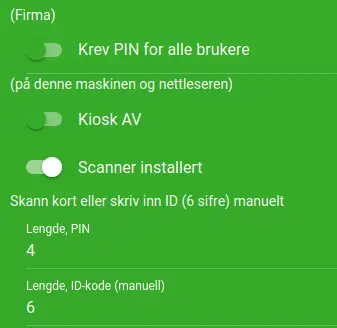
How do I set up the kiosk?
A kiosk is a shared Toolbee PC/mobile device that lets users identify themselves with an ID code or card, and then enter a PIN code (optional, but recommended). Only PC devices support Mifare and QR; mobile devices only support QR.
Go to Company → Kiosk. You set up the kiosk on the same PC/device the kiosk will run on.
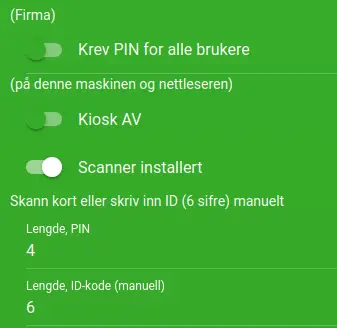
Tips for PC: Set up https://app.toolbee.com/ as the start page in your browser, disable the screensaver/sleep mode, and add the browser to startup programs.
Exiting kiosk mode
We have designed it so that a kiosk always goes to the kiosk login instead of the welcome page at startup. To log in to a kiosk device with email or SMS:
- Either log in as an administrator with a card/ID, or
- Go to/click this link: https://app.toolbee.com/login to log in,
and then go to Company → Kiosk to turn off kiosk mode.
Require PIN:
- If ON, users without a PIN will be asked to choose and confirm a PIN on first login.
- If OFF, the user will only be asked to enter a PIN if one has been set for that user.
Kiosk ON/OFF
- If ON, the device will not show the normal login screen, but instead the kiosk login.
- If OFF, the device will show the normal login screen.
Scanner installed
- If ON, the device will show the scan field by default. Users scan or show their card to identify themselves. They can press the ‘Use ID code’ button to switch to ID entry.
- If OFF, the device will not show the scan field. Users must then enter their ID code manually.
Manual ID:
For manual ID entry, the ID must be numeric, and the length must exactly match the user’s ID length. The ‘ID number length’ field determines how many digits the kiosk requires for login. In the examples below, the user has ID number 0194
- If the ID length is set to 3, the user’s ID code is too long. You can optionally change the user’s ID to 194.
- If the ID length is 4, it will work with 0194.
- If the ID length is 5, the user’s ID code is too short. You can optionally change the user’s ID to 00194.
Note that users with alphanumeric IDs (e.g. 123A) cannot log in with manual ID entry, as the kiosk only supports numbers.
Card reading:
For card reading, the ID length can be variable. You can read both Mifare and QR cards on the same kiosk, as long as the card ID gives the same cardID. For example: if company ID is ABCD and card ID is ABC123, then both
- Mifare card with ID «ABC123» and
- QR code with content «QLI ABCD ABC123»
will identify the same user.
PIN handling:
The kiosk uses the FIRST digits of the PIN code, and the padding digit is 0. The ‘PIN length’ field determines how many digits the kiosk requires for login.
- For example, if the kiosk PIN code length is 4 and the user’s PIN is 123456, the user must enter 1234.
- For example, if the kiosk PIN code length is 6 and the user’s PIN is 1234, the user must enter 001234.
Mifare and QR card features
- Security depends on using a PIN code. It is possible to log in without one, but copying cards is not particularly difficult. This applies to both Mifare and QR cards.
- Card or ID code identifies the user,
- PIN code authenticates.
- On Mifare cards we read the serial number. Mifare cards have random serial numbers, so it is unlikely you will come across two cards with the same serial number regardless of who supplied the card. Examples of Mifare cards are construction/HSE cards, VISA, Mastercard, Diners, Amex, passports and ID cards, bus cards, gym cards, access cards and various tags. The chances are high that you already have some card you can use. We currently do not support adding a company ID to Mifare cards, but this can be specially ordered. In that case, you would also need to specially order the Mifare cards, or have your own programming equipment and keys for existing cards.
On QR cards we read and decode the content. We also verify that the company is correct.
To generate your own QR cards with a user ID, you can use a QR generator such as «qrencode». You can pad with «_» after the code to get a consistent size. We recommend setting error correction as high as possible.
Example command to create a code with Company ID ABCD and card ID ABC123:
qrencode -s 16 -l H -o pli-at.jpg "QLI ABCD ABC123________________________________"
It is also possible to use a construction/HSE card for QR login — you scan the QR code on the card. NOTE that when users get new cards after a few years, you must re-read the new code. Each card has a unique code even if the person is the same.
Reading in cards
Go to the Users menu and open a user.
If you use an ID number, you can just type it directly into the field.
If you want to use a card reader, press the scan button and show the card. The scan box decodes the card and saves the result in the ID card field.
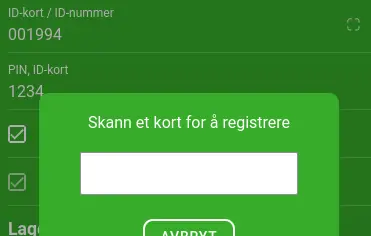
In the PIN field you can change the user’s PIN code. Users can also change their own PIN code under their personal settings.
You can also contact us if you have questions about setup, and we will help you.← Back to all manuals
Last updated: March 12, 2024